Continuity and people

Documents

Versioned policies and procedures, with approval and export, plus compliance with NIS2, ISO 27001, GDPR, and CIS: an evidence-based score, an action plan, and automated checks from the platform’s data.

Version
1.6.1
Stage
Stable
Screenshots
4
Replaces
Word documents scattered across file shares and compliance spreadsheets kept by hand
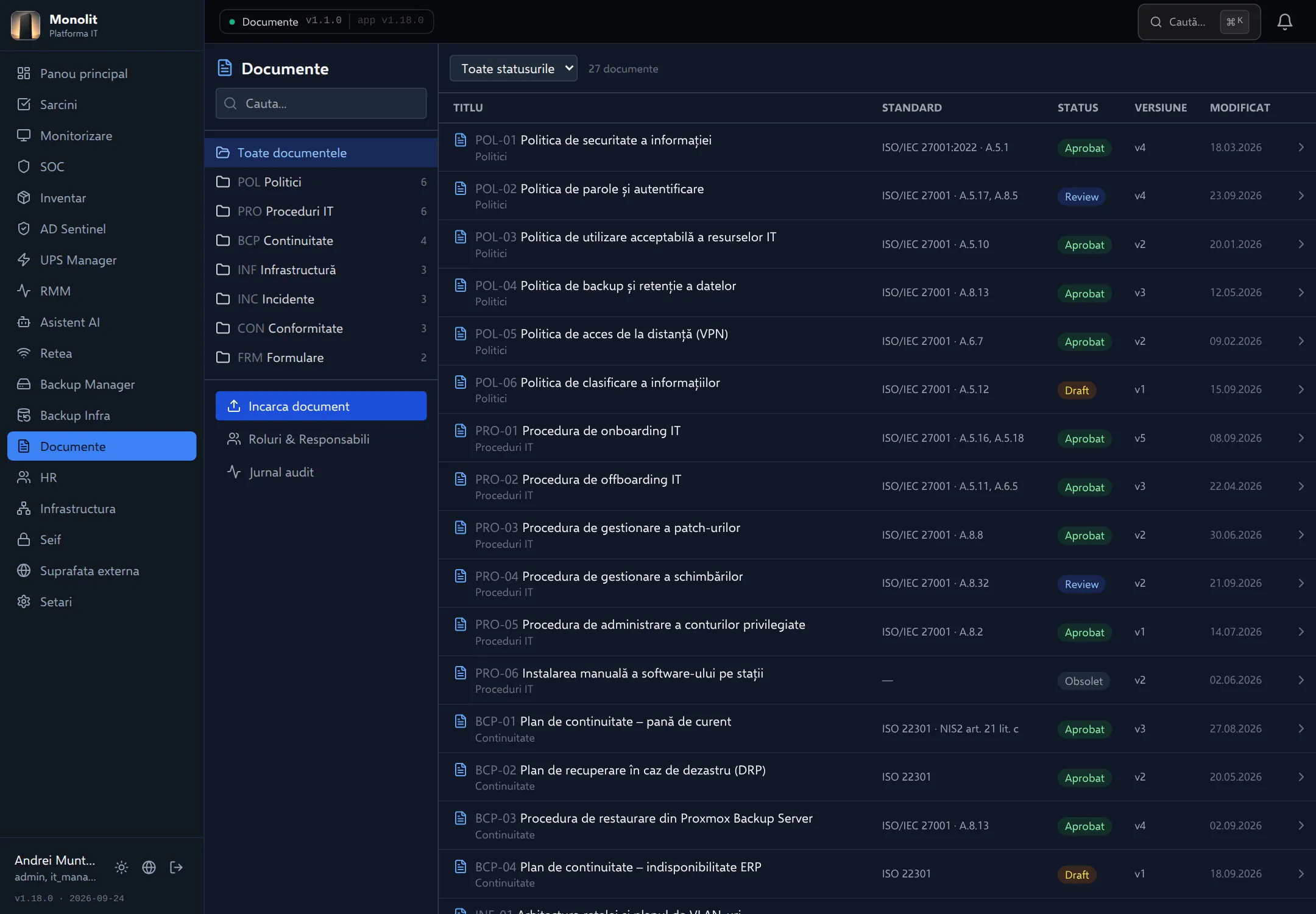
Document register. IT policies, procedures, and plans, grouped by category, with the code, the reference standard, the status (draft, under review, approved, obsolete), and the current version. You can see at a glance what is waiting for approval and what is still in progress.

Screenshots from the application

What it looks like at work

The real Monolit interface, with data from a fictional company on a typical day. The interface in the screenshots is in Romanian. Click a screenshot to see it at full size.

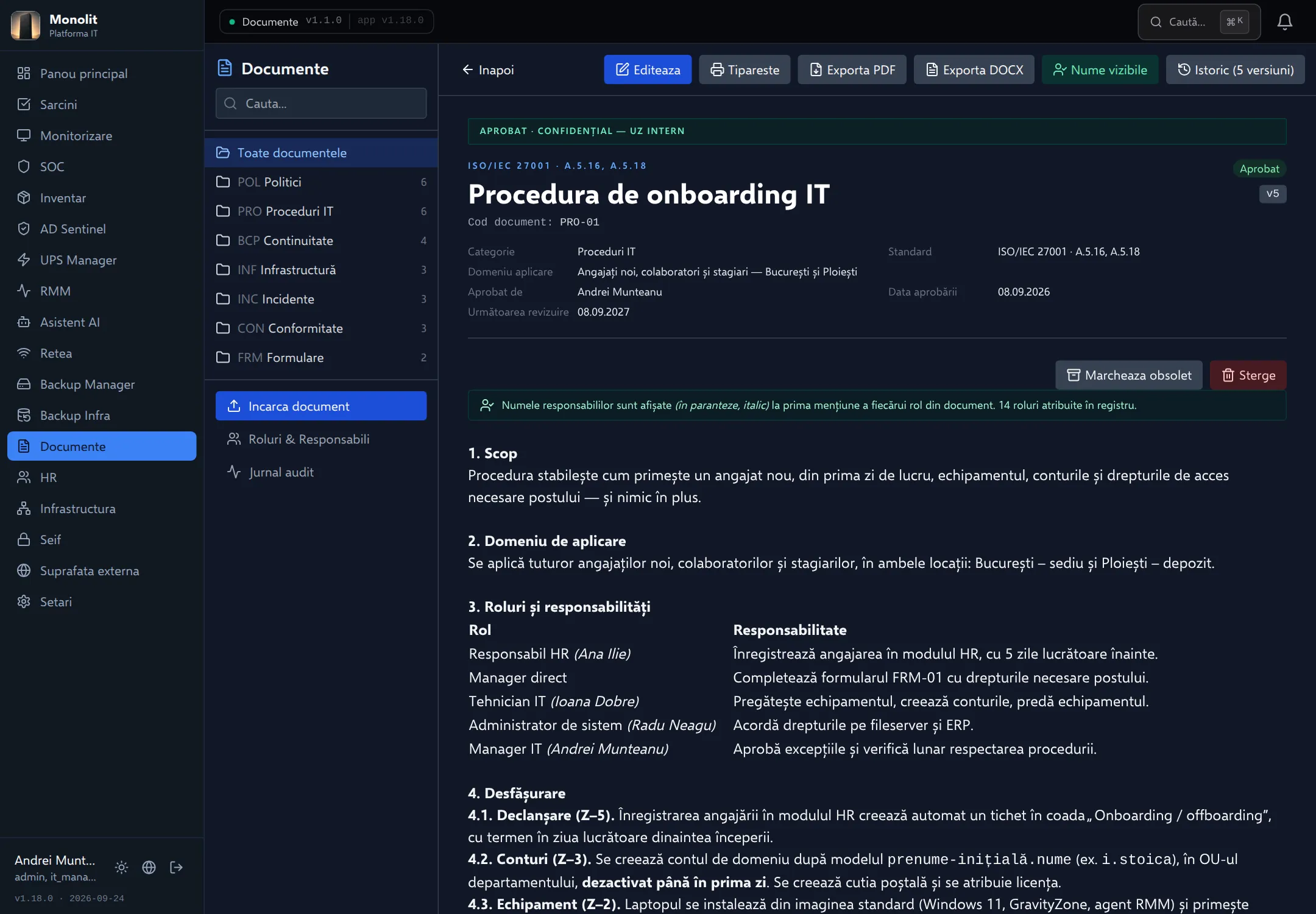
IT onboarding procedure. An approved document with complete metadata: who approved it, when, and when it is due for review. With “Show responsible names” (Vezi nume responsabili) turned on, the person assigned in the role register appears next to each role in the text.
Screenshot 2 of 4

IT onboarding procedure

An approved document with complete metadata: who approved it, when, and when it is due for review. With “Show responsible names” (Vezi nume responsabili) turned on, the person assigned in the role register appears next to each role in the text.

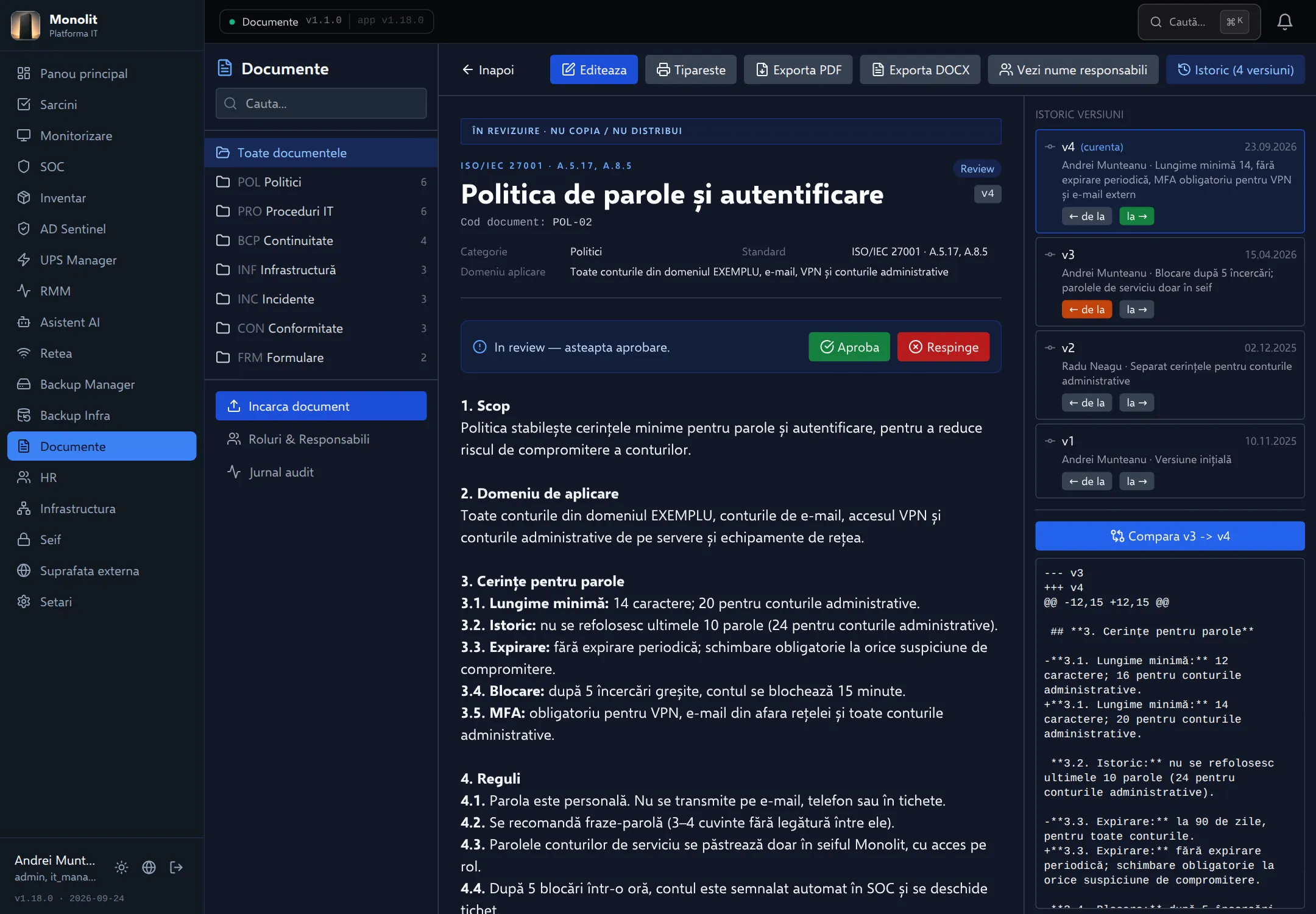
Version history and differences. The password policy, submitted for approval as version 4. The panel on the right lists all versions, with author and reason, and shows exactly what changed compared with the previously approved version.
Screenshot 3 of 4

Version history and differences

The password policy, submitted for approval as version 4. The panel on the right lists all versions, with author and reason, and shows exactly what changed compared with the previously approved version.

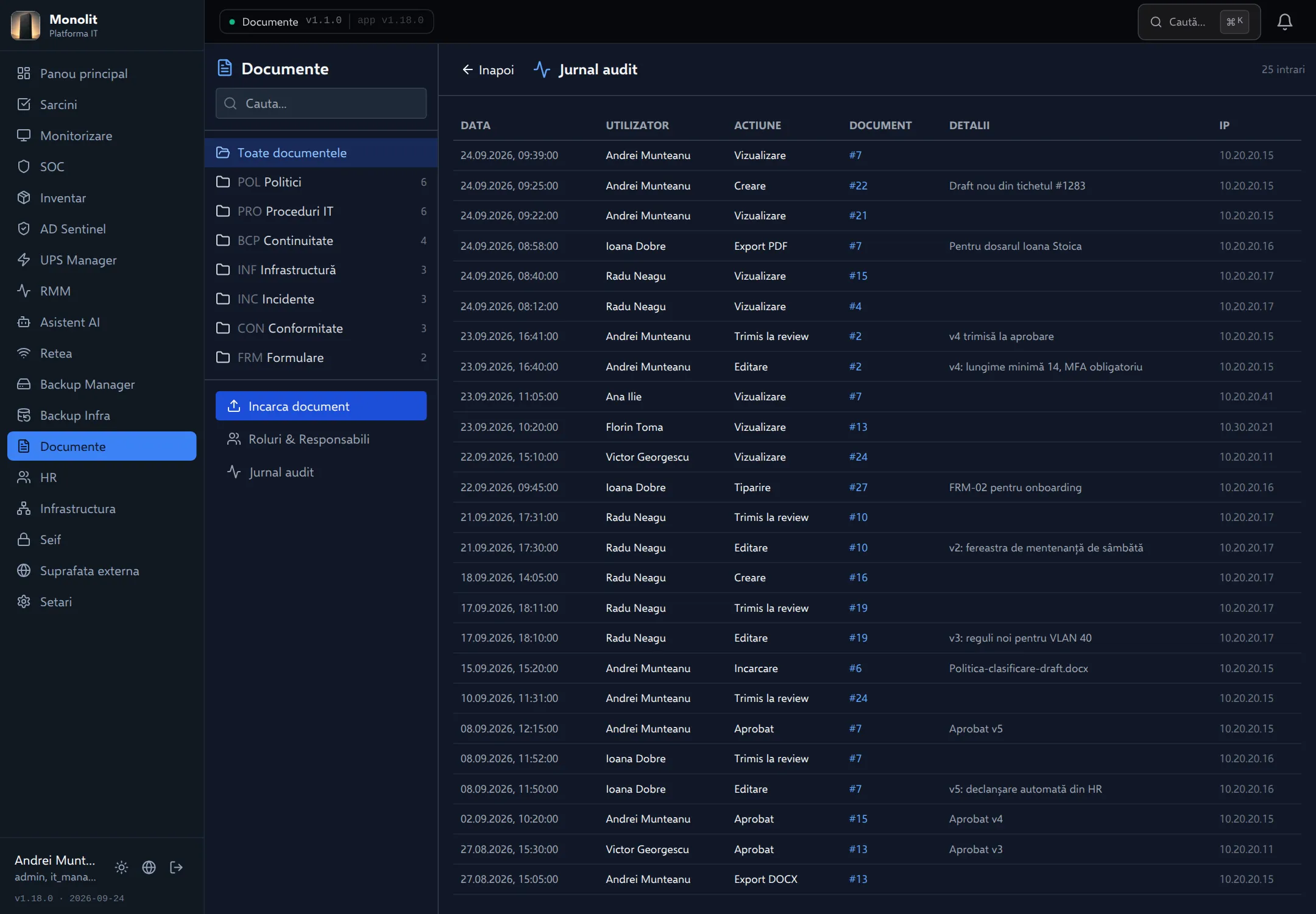
Audit log. Every view, edit, export, and approval step is recorded with the user, the date, and the IP address. The log answers the question of who viewed or changed the document, and when.
Screenshot 4 of 4

Audit log

Every view, edit, export, and approval step is recorded with the user, the date, and the IP address. The log answers the question of who viewed or changed the document, and when.

1Level 1

For leadership

What problem it solves, how the team works with the module, and what can be measured.

What problem it solves

IT policies and procedures usually sit in shared folders, in several Word versions. It is not clear which version is the approved one, who approved it, when it must be reviewed, and who has read it. In an audit (ISO 27001, NIS2, GDPR) these questions take days of searching, and the question “how prepared are we?” is usually answered from memory, not from data.

The Documents module keeps all IT governance documents in a single register, with versions, an approval workflow, and an access log, and measures compliance with four standards: NIS2, ISO 27001:2022, GDPR, and CIS Controls IG1.

Compliance: NIS2, ISO 27001, GDPR, and CIS

  • A score for each standard, based on evidence. Documents → Compliance shows the score and coverage of each standard and, for each requirement, what is missing and the steps to fix it. The evidence is the approved documents reviewed on time, the IT manager’s attestations (with a validity period), and data read automatically from the other modules. Anything without evidence is not counted as met and is shown separately, so that the score does not look better than it is.
  • Four standards, one answer. NIS2 (Articles 20, 21, and 23), ISO 27001:2022 (clauses 4–10 and the 93 controls in Annex A), GDPR together with Romania’s Law 190/2018, and CIS Controls v8.1 IG1 (56 safeguards). An attestation or a document counts toward every standard that requires exactly the same thing.
  • Automated evidence. Some of the checks are decided from platform data: antivirus and signatures, security patches, certificates, backup of the platform and of the virtual machines, the log sources in SOC, SPF and DMARC, inactive accounts in Active Directory, and the SOC register of external dependencies, for the NIS2 supplier requirement. A problem found automatically appears with the workstation or source named and cannot be covered by a manual attestation; an unavailable source gives no verdict.
  • The compliance plan. A single list of everything there is to do (documents to create or review, measures to implement, expired attestations, accepted risks), with the evidence to keep and the estimated score gain. It is saved as a working document, with an owner and a deadline. A check that is not met becomes, with one click, a task in Task Manager.
  • Documents from templates. A missing document (the retention policy, the privacy notice, the procedure for data subject requests, the data incident register, training records or restore test reports, etc.) is generated as a draft from one of the 19 templates, with the company’s details filled in, and then goes through the usual approval workflow.
  • Versioned report. The assessment is saved as a report in the register, and the history shows how the score evolves.

The score measures internal readiness; it is not a certification, and the requirements are summarized, not reproduced from the text of the standards. The solutions come from each standard’s catalog.

What it does in practice

  • Register by category. Each document has a code (for example PRO-01), a category, the reference standard, the scope, the status, and the current version. The list can be filtered by category and status.
  • A four-state approval workflow. Draft → Review → Approved → Obsolete. A rejected document returns to Draft, with the reason for the rejection.
  • A version with every change. Every edit creates a new version, with the author, the date, and a short summary of the change. Any two versions can be compared line by line.
  • Metadata for audits. Who approved the document, when, and by when it must be reviewed. Each document shows a classification banner: “Approved · Confidential — Internal use”, “Under review · Do not copy / do not distribute”, or “DRAFT · Working document”.
  • Register of roles and owners. Documents are written by role (“IT manager”, “IT technician”), and the register says who holds each role, with a deputy, email, and phone. On export, the person’s name appears next to the first mention of the role; in the viewer it can be shown on request.
  • Import, printing, and export. .md, .docx, .pdf (and .txt) files can be uploaded; documents are printed or exported to PDF and DOCX with the company letterhead (logo, name, identification details) and a color band in the footer. An uploaded document cannot run code in the reader’s browser.
  • Full-text search. Search covers the text of the documents, not just the titles.
  • Audit log. Every view, edit, print, export, and approval step is recorded with the user, the date, and the IP address.

Workflows

1. A new or updated procedure

  1. The author uploads a Word or Markdown file, edits the existing document (visual or Markdown editor, with preview), or starts from a draft generated in Compliance.
  2. On save, a new version is created in the Draft state, with the summary of the change.
  3. The author submits the document for approval (Review).
  4. The IT manager compares the new version with the previously approved one and approves or rejects it, with a comment.
  5. After approval, the document receives the approval date and the approver. In Compliance it counts as evidence for the requirements it covers, until its review date.

2. Replacing a document

  1. The old approved document is marked Obsolete (by an administrator).
  2. It stays in the register, read-only, with its full version history.

3. Preparing for an audit

  1. In Documents → Compliance, you choose the standard and see the score, which checks are met, with what evidence, and what is missing.
  2. From the compliance plan, the missing documents are generated and tasks are created for the measures to implement; the IT manager completes the attestations.
  3. The required documents are exported to PDF or DOCX, with the owners’ names filled in from the role register.
  4. The assessment is saved as a versioned report, and the audit log shows who viewed or changed each document.

Metrics

  • the score and coverage for each standard, with the trend of the saved assessments;
  • the actions in the compliance plan and the expired attestations;
  • documents by status (draft, under review, approved, obsolete) and by category;
  • approved documents used as evidence whose review date has passed, collected in the compliance plan under “Documents to review”;
  • the number of versions of each document;
  • the activity in the audit log (views, exports, approvals).

2Level 2

For the IT team

Integrations, requirements, roles, control, and known limitations.

What you configure

  • The company letterhead (logo, name, identification details), from the module settings; it appears on printed and exported documents.
  • At installation: where uploaded files are stored and turning on PDF export.
  • Existing documents can be brought in from a directory, in an initial import.
  • The editor: visual (with tables and links) or Markdown, with preview.

Compliance

  • The requirements of each standard have their own wording, not translations of the standards.
  • A requirement is proven by an approved document, by an attestation (yes, partial, no, not applicable, or accepted risk, with a justification and a deadline), or automatically, from platform data.
  • The automated checks use data from RMM, Backup & Recovery, Infrastructure Backup, SOC, External attack surface, and the AD Sentinel weekly report. A missing module leaves its checks without a verdict.
  • “Create task” sends the check to Task Manager, without duplicates. The saved assessment and the compliance plan become documents in the register, as drafts that go through the approval workflow.
  • The templates: 6 documents and 13 evidence forms. Where there is no template, Monolit prepares an outline based on the requirements of the standard.

Formats

Function What you get
PDF export the document with the company letterhead; a document too large to export is refused, without affecting the rest of the platform
DOCX export the document in Word, with the company letterhead on the first page
printing a print-ready page, with the company letterhead
import .md, .docx, .pdf, and .txt; the title can be taken from the first heading of the document
initial import the existing documents, from a directory

Roles and audit

Action Minimum role
submitting for approval (Draft → Review) IT staff
reading compliance, the plan, and the templates; “Create task” IT staff
creating a document, approving (Review → Approved) IT manager
attestations, document links, generating from a template, saving the assessment and the plan IT manager
marking Obsolete, deleting, audit log, initial import administrator
creating and editing roles IT manager
deleting a role, loading the default roles administrator

A deleted document is not lost: it stays in the database. The log records views, edits, creation, deletion, printing, exports, uploads, and the steps of the approval workflow, each with the user, the document, a detail, and the IP address.

The role register starts from a set of default roles and has three groups: management (shown on the cover page and in the signature block), concrete roles (a fixed person), and generic roles (dependent on context, with optional assignment). A role can have several names, all recognized in the text.

Requirements

  • the Monolit platform installed;
  • PDF export enabled on the server, at installation;
  • storage space for uploaded files;
  • for the automated checks, the source modules running.

Limitations

  • The solutions in Compliance come from the catalog; the local AI does not explain them and does not suggest others.
  • Categories are shown as a flat list, without a hierarchy.
  • The viewer shows the text without full typographic formatting (headings are the same size as the text); the final form is obtained when printing or exporting.
  • In the viewer, the owners’ names appear only at the first mention of each role.
  • There is no notification for documents that reach their review date; they do, however, appear in the compliance plan, under “Documents to review”.
  • The approval workflow buttons appear for all users, but a step that is not permitted is refused, according to the table above. Rejection (Review → Draft) and uploading a new file (.md, .docx, .pdf) require, like approval, the IT manager role.