IT operations

Helpdesk & Task Manager

Every request to IT goes into a single queue, with measured SLA deadlines and the knowledge base at hand.

Version
2.5.0
Stage
Stable
Screenshots
2
Replaces
A separate helpdesk (Freshservice, Jira Service Management)
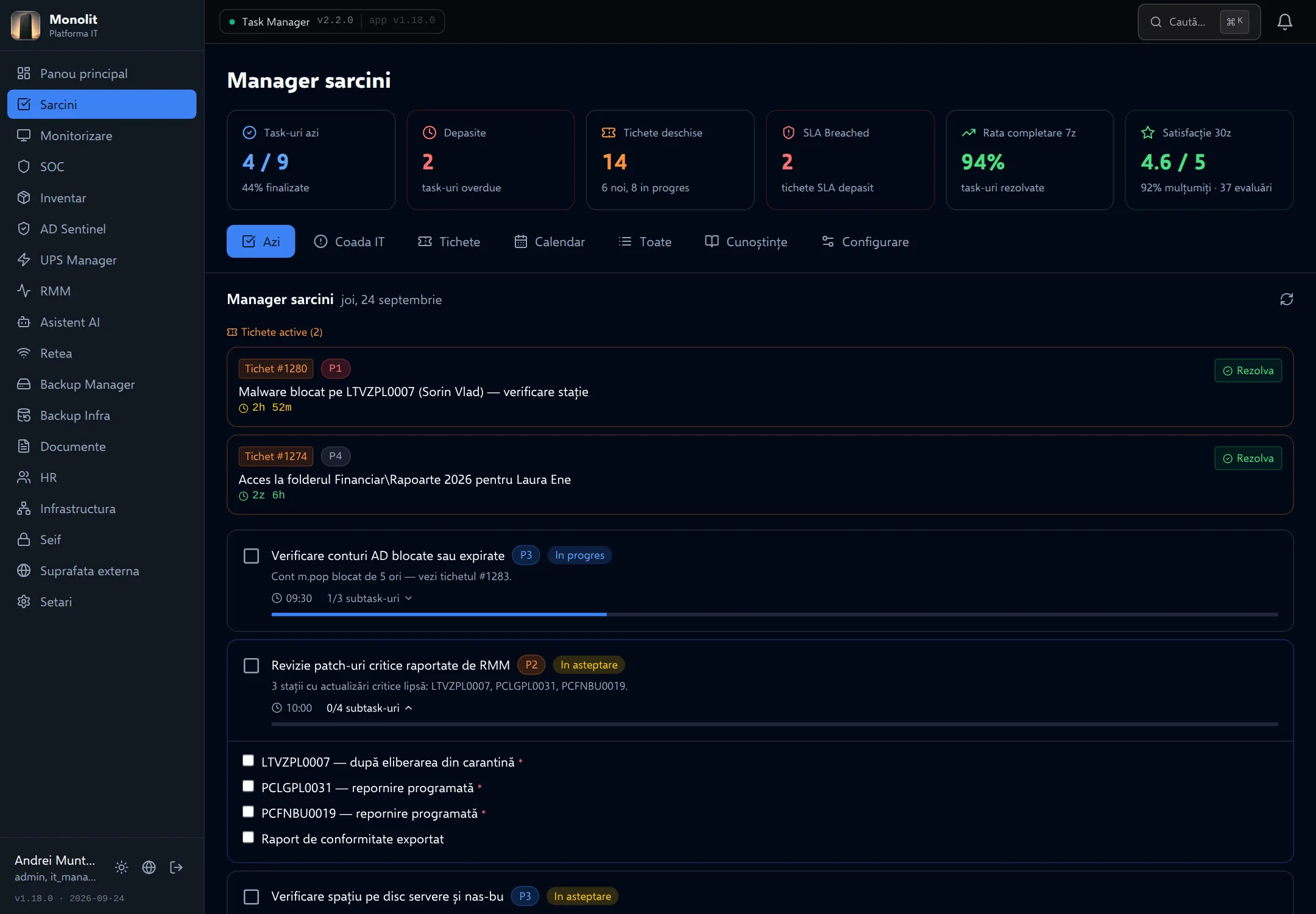
Today’s tasks, generated from templates. Routine checks (backup, UPS, SOC alerts, locked accounts, patches) appear automatically every morning, with a checklist and a target time. At the top are the day’s metrics: today’s tasks and overdue tasks, open tickets and those past their SLA deadline, the 7-day completion rate, and, when there are ratings, requester satisfaction over 30 days.

Screenshots from the application

What it looks like at work

The real Monolit interface, with data from a fictional company on a typical day. The interface in the screenshots is in Romanian. Click a screenshot to see it at full size.

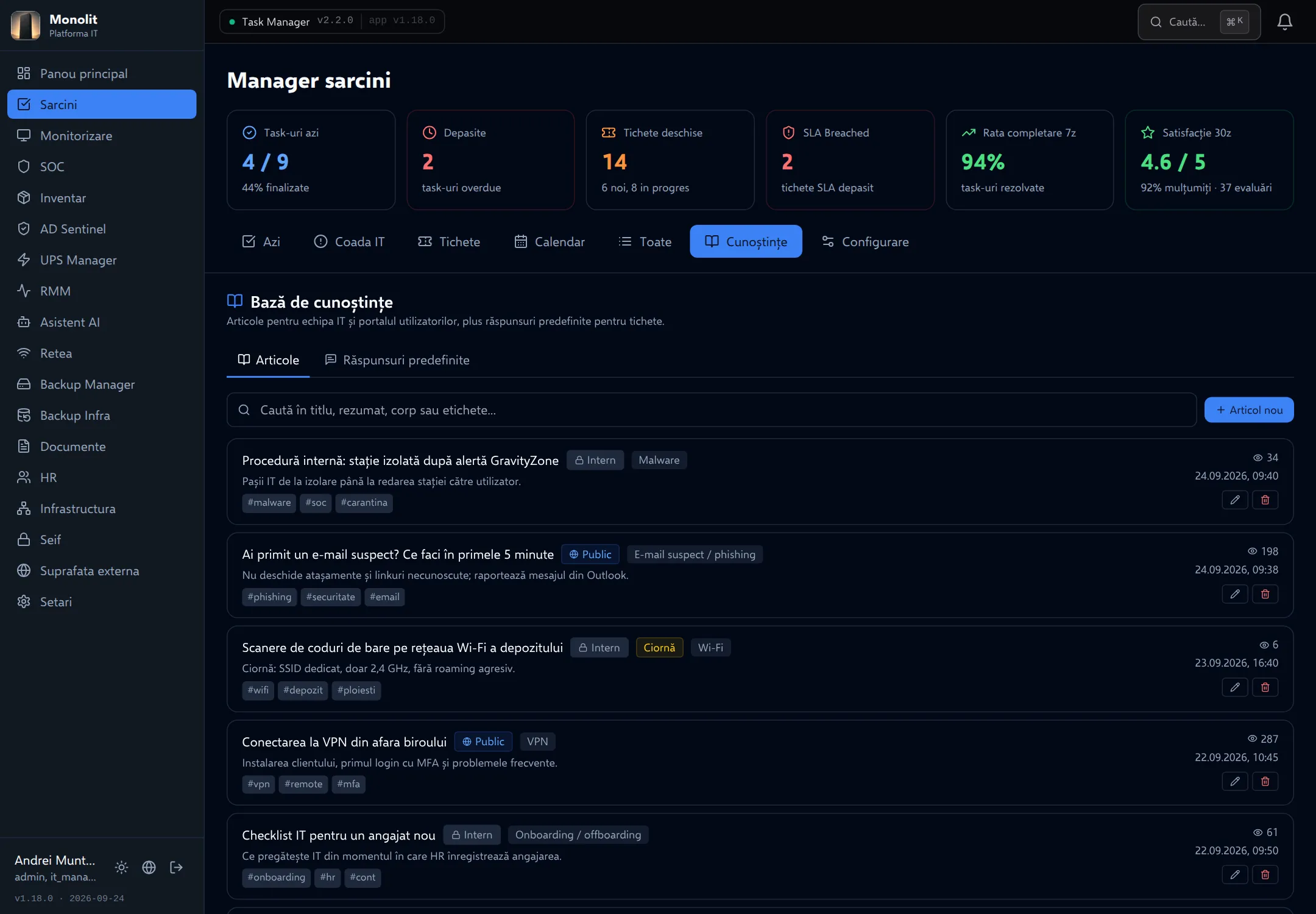
Knowledge base. Internal articles for the IT team and public articles for the user portal, with tags, view counts, and status (published or draft). The canned responses used in tickets are also managed here.
Screenshot 2 of 2

Knowledge base

Internal articles for the IT team and public articles for the user portal, with tags, view counts, and status (published or draft). The canned responses used in tickets are also managed here.

1Level 1

For leadership

What problem it solves, how the team works with the module, and what can be measured.

What problem it solves

Requests to IT arrive through many channels: phone, email, messages, conversations in the hallway. Without a single place to track them, some get lost, others get handled twice, and leadership does not know how long a resolution takes or how satisfied colleagues are. On top of requests, the IT team has daily checks (backup, UPS, accounts, updates) that are done from memory or not at all.

Task Manager brings helpdesk tickets and the IT team’s routine tasks together in one module, with deadlines, owners, and history.

What it does in practice

  • Tickets with priority and SLA deadlines. Each ticket has a priority from P1 (critical) to P4 (minor), a response deadline, and a resolution deadline. The interface shows how much time is left and highlights overdue tickets in red.
  • Multiple intake channels. Tickets are created from the interface, from the user portal, which does not require an account, and from emails sent to the helpdesk mailbox.
  • Tasks created by other modules. For hires and departures, the HR module creates the IT tasks, with the steps to follow. From Documents → Compliance, an unmet requirement becomes a task in one click, with the remediation steps.
  • Team work queues. Tickets go automatically into the right queue, based on their category. Each queue has members and a count of open tickets.
  • The IT queue. A single list of active tickets, most urgent first, with filters (“Mine”, “Unassigned”, by queue) and bulk actions.
  • Communication with the requester. Public comments and internal notes, email replies sent directly from the ticket, and canned responses filled in automatically with the requester’s name and the ticket number.
  • SLA pause. While waiting for a reply from the user, the technician pauses the SLA; when work resumes, the deadlines shift by the length of the pause.
  • Satisfaction rating. After resolution, the requester can give a score from 1 to 5 and a comment. The 30-day average appears in the metrics.
  • Recurring tasks from templates. Routine checks (daily, weekly, monthly, quarterly, or yearly) appear automatically in the day’s list, with a target time and a checklist; mandatory steps are marked.
  • Knowledge base. Internal articles for IT and public articles for the portal, with tags and search.
  • Calendar. Meetings, maintenance windows, change windows, and deadlines.
  • Separate for employees and for IT. Employees submit and track their requests from the portal. The module, with IT’s internal tasks (hires, departures, audits), is visible only to the IT team.

Workflows

1. A request from a colleague

  1. The colleague submits the request from the portal or by email, to the helpdesk mailbox.
  2. The ticket gets a category and a priority and goes into the category’s default queue.
  3. A team member picks it up (“Take it”) or the IT manager assigns it.
  4. The technician replies by email from the ticket, possibly starting from a canned response. While waiting for information, they pause the SLA.
  5. If the deadline passes, the ticket is marked “SLA breached” once, and the breach also appears in SOC.
  6. The ticket is closed with a resolution category (fixed, instructions provided, duplicate, false positive, no action needed, other) and notes.
  7. The requester rates the resolution (1–5).

2. A compliance requirement turned into a task

  1. The compliance assessment in Documents (for example NIS2) shows an unmet check.
  2. A member of the IT team clicks “Create task”, and a P2 or P3 task appears in Task Manager, with the remediation steps as a checklist.
  3. The task stays linked to the check: clicking again finds it and does not create a duplicate.

3. The IT team’s working day

  1. In the morning, the “Today” list contains the tasks generated from the active templates. Tickets assigned to the user are in the IT queue, under the “Mine” filter.
  2. The technician checks off the steps of each task; unfinished tasks from previous days appear as overdue.
  3. For hires and departures, the HR module creates the “IT onboarding” tasks (account, email, workstation, VPN, groups) and the “IT offboarding” tasks (access revocation) directly in Task Manager. If the request is repeated, for example after a network interruption, the task is not duplicated.

Metrics it tracks

  • the day’s tasks: completed out of the total;
  • overdue tasks;
  • open and in-progress tickets;
  • tickets past their SLA deadline;
  • the task completion rate over the last 7 days;
  • the average resolution time;
  • requester satisfaction over 30 days (average score, percentage of satisfied requesters, number of ratings).

The number of open tickets and overdue tasks also appears on the main dashboard, including for non-IT accounts.

2Level 2

For the IT team

Integrations, requirements, roles, control, and known limitations.

Configuration

  • At installation, the module comes with 40 routine task templates (daily, weekly, monthly, quarterly, and yearly), 8 ticket categories, and 35 subcategories.
  • The helpdesk mailbox is configured from Settings, including connection encryption. Passwords are stored encrypted and displayed masked. Settings shows the last successful mailbox check and the last error, and you can also start a check manually.

Integrations

  • HR creates the hiring and departure tasks, plus escalations; a repeated request does not duplicate the task.
  • Documents → Compliance: “Create task” for an unmet check; the task stays linked to the check.
  • SOC receives SLA breaches.
  • The main dashboard shows the number of open tickets and overdue tasks.
  • Email: any mailbox reachable over IMAP and SMTP, for incoming tickets and for replies.

The portal

  • Employees with an account see and track their tickets. A visitor without an account can submit a request and track it, without seeing other people’s requests; the portal is protected against bulk submissions.
  • Public knowledge base articles can be read without an account, and rating a resolution does not require an account.

Roles and audit

  • Tickets, tasks, the day’s list, templates, SLA rules, the calendar, and the internal knowledge base are for the IT team only. Editing templates and deleting tasks require an administrator or the IT manager, and the HR role can only create and view tasks.
  • Categories, queues, canned responses, deleting articles, and configuring the mailbox are for administrators and the IT manager.
  • For other accounts, the module does not appear in the menu and cannot be opened: employees use the portal, and on the dashboard they see only the number of open tickets and overdue tasks.
  • The portal does not show internal notes or internal attachments.
  • Each ticket has a history: creation, changes (status, priority, assignee, SLA clock), comments, files attached or deleted, emails sent, and SLA breaches, with author and time.
  • Each attachment keeps its source (internal, portal, email) and a fingerprint that shows the file has not been changed; it can be marked “IT only”.

Requirements

  • the Monolit platform (the shared server and database);
  • for email: a dedicated mailbox, reachable over IMAP and SMTP;
  • for the portal: HTTPS (recommended).

Limitations

  • Alerts from other modules do not automatically become tickets: they stay in their own modules and in SOC.
  • The interface does not yet have a task template editor.
  • SLA deadlines per priority cannot be changed from the application.
  • The assignee of a category cannot be set from the interface: the “Category routing” page shows it but can change only the default queue.
  • The “New event” button in the Calendar does not create events yet.
  • The “All” list shows only the most recent tasks, without pagination.